MP4 vs MOV, AVI, MKV and WebM explained. Learn which video format to use for websites, social media, editing and sharing, with practical expert advice.
A practical guide to choosing the right video format for websites, social media, client delivery and professional editing.
Featured image: bespoke AI-generated editorial artwork, not a photograph of a client project.
You’ve received a finished video from your videographer, but the download folder contains an MP4, a MOV and perhaps a much larger file marked ProRes. Which one should you upload to your website? Is a MOV better quality than an MP4? And why does a three-minute video sometimes take up several gigabytes?
The short answer: for most everyday sharing, an MP4 containing H.264 video and AAC audio is a reliable choice. MOV files are also perfectly useful, especially where a professional editing file is needed. But the letters at the end of a filename are only part of the story.
This guide explains the common video file formats in plain English, compares MP4 and MOV, explores codecs such as H.264 and H.265, and shows what to ask your videographer for before your next campaign, event or product shoot.
Video file formats at a glance
If you only need the answer for a particular job, start here.
| What you want to do | Sensible starting point | Why |
|---|---|---|
| Share a finished video with colleagues or clients | MP4, H.264, AAC | Broad compatibility and manageable file sizes |
| Upload a video to YouTube | MP4, H.264, AAC | Aligns with YouTube’s published recommended upload settings |
| Upload a video to Instagram, LinkedIn or other social channels | MP4, H.264, AAC | A practical, widely supported delivery option; check current platform requirements |
| Put a video on your website | Web-optimised MP4 (H.264); optionally a WebM alternative | Reliable playback with potential compression improvements for supported browsers |
| Send footage to another professional editor | Original camera files or an agreed high-quality editing codec, often ProRes in MOV | Preserves flexibility and avoids unnecessary generation loss |
| Supply a high-quality review or archival master | An agreed high-bitrate master, often ProRes in MOV | Useful for future versions, subject to storage and workflow requirements |
| Send a vertical social cut | Usually MP4, H.264, in the correct vertical dimensions | Format and aspect ratio are separate settings |
| Deliver captions or subtitles | Video plus agreed SRT or other caption file, or an accessible embedded option | The video extension alone does not settle accessibility |
These are starting points, not rules for every platform, camera or delivery specification. A broadcaster, cinema, publisher or client may require something more specific.
What is a video file format?
A video file format is the way moving images and related information are stored in a digital file. You will usually recognise it by the extension after the filename: .mp4, .mov, .avi, .mkv or .webm, for example.
A video file can contain several things at once: a picture track, sound, subtitles, time information and descriptive metadata. A container organises those elements. A codec decides how the picture or audio is encoded and decoded.
A helpful way to think about it is a delivery box. The container is the box and its labels; the codec describes how the contents have been packed. Two boxes that look the same on the outside can contain very different material.
That is why an MP4 from one videographer might open instantly on your laptop, while another MP4 could fail on an older device. Both share an extension, but the underlying codec, profile or resolution may differ.
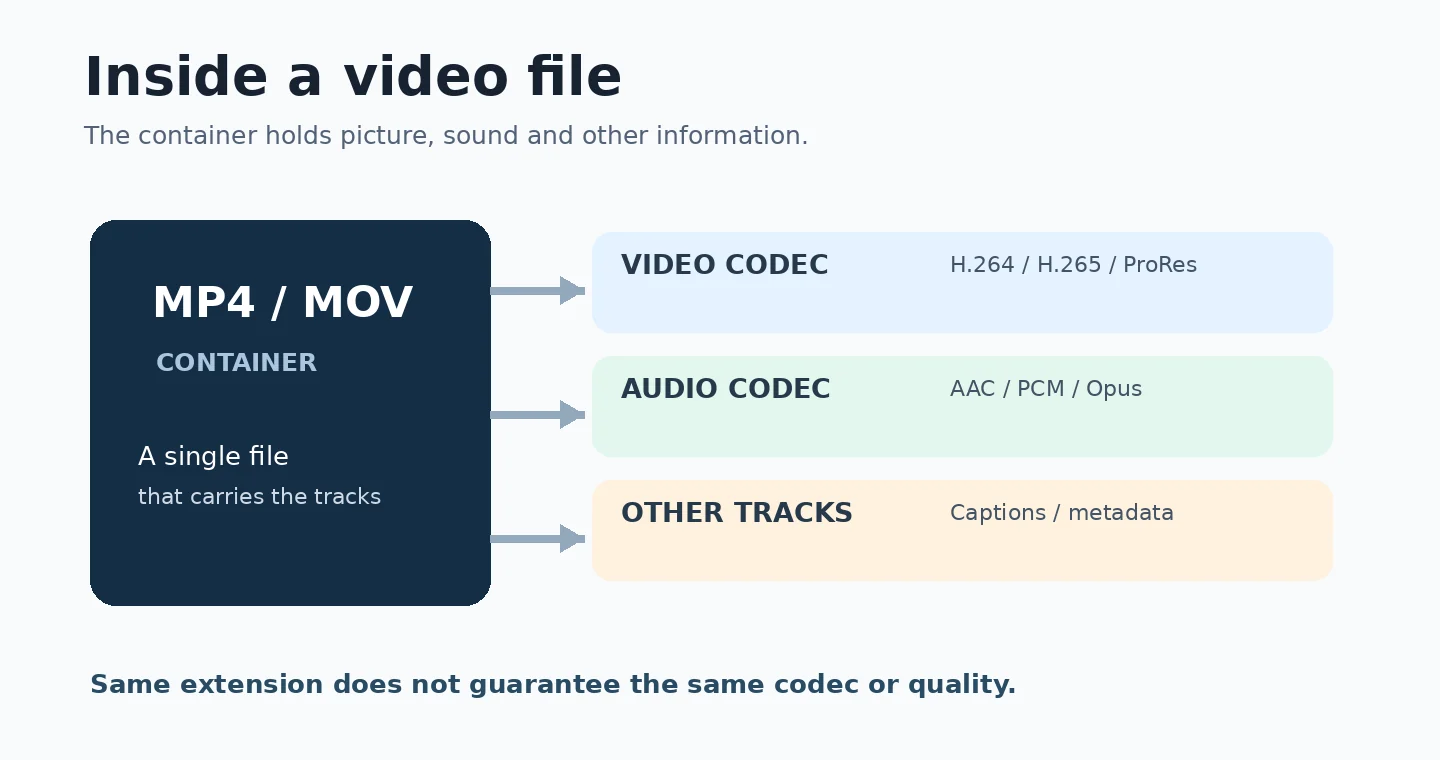
Container vs codec: the essential difference
- Container: MP4, MOV, MKV, AVI or WebM. It holds the video, audio and other tracks together.
- Video codec: H.264/AVC, H.265/HEVC, AV1, VP9, Apple ProRes or DNxHR. It determines how the video pictures are stored and decoded.
- Audio codec: AAC, Opus, PCM or another audio format stored in the file.
- Export settings: Resolution, frame rate, bitrate, colour space and other choices that affect how the file looks and behaves.
For example, conference-highlights.mp4 might contain H.264 video and AAC audio. conference-highlights.mov could contain H.264 video and AAC audio too. A change from MP4 to MOV does not automatically improve quality.
MP4: the everyday all-rounder
MP4, short for MPEG-4 Part 14, is one of the most common containers for finished video. It is widely supported on phones, laptops, websites, presentation software and video-sharing platforms.
MP4 is especially useful for businesses because it makes delivery straightforward. Your marketing team can usually review, upload and distribute the finished file without specialist editing software.
What is MP4 best for?
MP4 is a sensible default for finished event highlights, promotional clips, customer testimonials, website videos, training clips and social media edits. A common combination is an MP4 file with H.264 video and AAC audio.
It can also carry modern codecs such as HEVC/H.265, but compatibility depends on the device, browser and application being used. If your priority is that the greatest number of recipients can open the file, H.264 remains a pragmatic default.
Advantages of MP4
MP4 offers broad compatibility, efficient delivery, straightforward uploads and flexibility across different platforms. There is no need to send a gigantic editing master when someone only needs to watch a finished two-minute clip.
Limitations of MP4
An MP4 is not automatically small, and it is not automatically low quality. A high-bitrate 4K MP4 may be far larger than a highly compressed 1080p MP4. Some combinations of codec and settings also need newer hardware or software.
For professional editing, it can be worth supplying the original camera files or a codec designed for post-production rather than relying solely on a heavily compressed delivery MP4.
MOV: Apple’s QuickTime container
MOV is a QuickTime file container developed by Apple. It is common in recording and editing workflows, and you may see it when working with iPhone footage, macOS software or professional editors.
A MOV file is not automatically a high-quality master. It can contain a highly compressed H.264 or HEVC video, just like an MP4. But MOV is also frequently used to carry editing-friendly formats, notably Apple ProRes.
What is MOV best for?
MOV is useful when the client or editor wants a specific professional workflow, a ProRes master or another QuickTime-supported format. It may also be the native container supplied by a camera or editing application.
Is MOV compatible with Windows?
Often, yes, but playback is determined by the codec and installed software, not simply the extension. A MOV containing a codec your computer cannot decode might not open in the default player. A suitable media player or professional editing application may handle it, but it is better to request a compatible export than expect every recipient to install new software.
Advantages and limitations of MOV
Its main advantage is flexibility within professional workflows. A potential drawback is that some MOV files use large editing codecs and may be inconvenient for ordinary email, social uploads or quick previews. But file size comes from the contents and export settings, not from the letters MOV themselves.
MP4 vs MOV: what is the difference?
This is one of the most common questions we hear when a client receives their finished footage.
| Question | MP4 | MOV |
|---|---|---|
| What is it? | Multimedia container | Apple QuickTime container |
| Where is it commonly used? | General delivery, web and social sharing | Camera, Apple and professional editing workflows |
| Can it contain H.264? | Yes | Yes |
| Can it contain H.265/HEVC? | Yes | Yes |
| Is it always smaller? | No | No |
| Is one always better quality? | No | No |
| Is it convenient for everyday playback? | Usually, especially with H.264/AAC | Often, but depends on the codec and player |
| Is it suitable for a professional editing master? | Sometimes, depending on specification | Commonly used, particularly with ProRes |
Our practical recommendation: ask for an MP4/H.264 version when you want to share a finished film, and agree a separate higher-quality master or camera-original delivery if you may re-edit the footage later.
Imagine two files containing the same H.264 picture and AAC audio at the same resolution, bitrate and frame rate. Putting those streams into an MP4 or MOV container does not inherently change the picture detail. By contrast, exporting a new file with a different codec or much lower bitrate can change its quality substantially.
AVI: an older but still recognisable format
AVI stands for Audio Video Interleave. It is an older Microsoft container that many people will remember from Windows computers, archived files or legacy camera systems.
AVI can hold different codecs and may be perfectly usable in older software environments. However, it is rarely our first choice for new business-video delivery because modern MP4 workflows are easier to share and support. Large AVI files are sometimes associated with uncompressed or lightly compressed footage, but AVI itself does not automatically mean a larger file.
Choose AVI only where a specific system requires it or when working with older material that is best kept in its original form.
MKV: flexible and useful, but not the default for clients
MKV stands for Matroska Video. It is a flexible container that can carry multiple audio tracks, subtitles and other metadata. It is popular for archiving, certain screen recordings and media collections.
MKV is not necessarily poor quality. It is simply not as convenient as a broadly supported MP4 when the job is to send a video to a client, place it in a presentation or upload it to multiple marketing platforms.
If you receive an MKV, ask which video and audio codecs it contains before converting it. In some circumstances it can be remuxed into another compatible container without re-encoding the picture; in other cases, a real conversion is needed.
WebM: designed with the modern web in mind
WebM is an open media container commonly used with video codecs such as VP9 or AV1 and audio codecs such as Opus. It can deliver efficient online video, and modern browsers widely support it, although specific codec and device compatibility still varies.
For a business website, WebM can be useful as one of the video sources offered to the browser. A developer may provide a WebM version and an MP4/H.264 fallback, letting the browser use an appropriate version.
Important: using WebM is not a substitute for good website performance. File size, compression, video length, lazy loading, poster images and the way video is embedded still matter.
WMV, MPEG, M4V and 3GP: other formats you may encounter
WMV
Windows Media Video is associated with older Microsoft video technologies. You may still find WMV files in archives, training libraries or legacy Windows systems. For most new cross-platform delivery, an MP4 is more convenient.
MPEG or MPG
These extensions often appear on older compressed video, DVDs or archival footage. They are worth preserving if they are the original source, but new marketing projects generally have more practical delivery choices.
M4V
M4V is an MP4-related extension associated with Apple media workflows. Depending on the file and its restrictions, an M4V may behave similarly to an MP4. Do not assume that changing the extension will remove access restrictions or make an incompatible file playable.
3GP
3GP was designed with older mobile devices and constrained connections in mind. It is largely a legacy choice rather than a format we would recommend for a new website or brand film.
What about ProRes, MXF and professional camera files?
It is useful to recognise professional formats even if you never need to open them yourself.
Apple ProRes is a family of video codecs commonly used for high-quality acquisition, editing and mastering. ProRes is frequently delivered inside a MOV container. It generally produces much larger files than an aggressively compressed H.264 version, but its characteristics can make it easier to handle in a professional post-production workflow.
DNxHD and DNxHR are another family of editing codecs, used in some professional workflows. These are codecs rather than universal filename extensions; they can appear in supported containers such as MXF or MOV.
MXF (Material Exchange Format) is a professional container used in broadcast and other structured media workflows. If a client, television company or agency requests MXF, the exact technical specification matters much more than the extension alone.
Camera-original and RAW formats can contain more information and offer greater flexibility for colour and exposure adjustments, but they may require specialist tools, substantial storage and a clearly agreed workflow. Rather than promising to send RAW files by default, ask your videographer whether the original camera material is available, whether it is included in the quote and what licence or usage terms apply.
A professional editing master and your finished MP4 are not competing versions of the same job. They serve different purposes.
Understanding video codecs: H.264, H.265, AV1 and more
A codec is the method used to encode and decode the moving images. It makes video practical to store, send and play rather than requiring enormous amounts of uncompressed data.
H.264 (AVC)
H.264 is the dependable default for many everyday video files. It offers broad compatibility across browsers, platforms and devices, especially in an MP4 container. If a client asks for a version that ‘just works’, an MP4 with H.264 video and AAC audio is often the right first answer.
H.265 (HEVC)
H.265, also called HEVC, is designed to compress video more efficiently than H.264 at comparable visual quality. That can be useful for high-resolution footage, but device support, encoding speed and licensing considerations make it less universal for client delivery.
Some Apple devices record HEVC video by default. If a Windows colleague cannot open it, the problem may be codec support rather than a damaged file.
AV1
AV1 is a modern, open video codec designed for efficient compression. It is increasingly relevant for web distribution and streaming, but hardware and software support depends on the playback environment. It is not the automatic answer for sending an editable source file to every client.
VP9
VP9 is another efficient codec commonly found with WebM files and online video services. It can be appropriate for web delivery, but ordinary clients usually do not need to choose it themselves.
ProRes
ProRes prioritises the needs of professional production and editing rather than the smallest possible download. If a client wants the freedom to make substantial new versions later, retaining an agreed high-quality master can be valuable.
So which codec should you choose?
For a typical finished business film, start with H.264. For specialised storage, newer playback environments, broadcast delivery or re-editing, agree the codec with the videographer or receiving editor first.
Why do some videos look better than others?
The file extension is not the only quality setting. Several other factors have an enormous influence on the result.
Resolution: 1080p, 4K and beyond
Resolution describes the number of pixels in the frame. A 1080p landscape video is usually 1920 x 1080 pixels. Standard UHD 4K is 3840 x 2160 pixels, providing four times as many pixels.
That extra detail can help with larger screens, reframing and some deliveries, but it does not guarantee a better result. Lighting, lens quality, camera movement, focus, colour and compression may matter more to the viewer.
Bitrate: how much data the video uses
Bitrate is the approximate amount of data used each second. It is often expressed in megabits per second (Mbps). All else being equal, a higher bitrate can preserve more detail, but it usually creates a larger file.
As a rough illustration, one minute at 8 Mbps is about 60 MB of video data, while one minute at 20 Mbps is about 150 MB, before audio and file overhead. Those are not universal quality recommendations: the efficient bitrate depends on codec, content, resolution and delivery requirements.
A fast-moving crowd at a festival may be more demanding to compress than a static interview filmed against a plain background.
Frame rate: 24, 25, 30 or 60 fps
Frame rate is the number of pictures displayed every second. In the UK, 25 fps and 50 fps are common working rates; other rates including 24, 30 and 60 fps are also used depending on the intended look and platform.
For a finished edit, it is generally sensible to retain the project’s native frame rate unless there is a specific technical reason to change it. Changing the filename extension will not fix judder caused by poor frame-rate conversion.
Colour, bit depth and HDR
Colour profiles, bit depth and high dynamic range (HDR) settings can influence how a file looks. A video mastered for HDR may appear washed out or overly contrasty if the receiving player or platform mishandles its metadata.
For ordinary standard-dynamic-range online delivery, correctly tagged Rec. 709 footage is a common, sensible choice. Professional projects may require more specialised colour management.
Audio quality matters too
Clear dialogue is critical in speeches, customer testimonials, event interviews and conference recordings. Check that the file has the correct audio track, that speech is audible on a phone, and that music is not overwhelming the people speaking.
For widespread compatibility, AAC audio is a familiar choice for an MP4 delivery. Recording and mastering quality matter just as much as the label on the audio codec.
Which video format should you use for each platform?
YouTube
YouTube’s published upload guidance recommends an MP4 container with H.264 video and an appropriate audio codec. It advises retaining the original frame rate and placing MP4 metadata at the beginning of the file for fast start where relevant. YouTube will process the upload into playback formats for its viewers.
For a simple finished film, our default would be a well-exported MP4, at the agreed resolution, with clear audio and a checked title and thumbnail. See YouTube’s upload guidance.
Instagram, Facebook, TikTok and LinkedIn
For many ordinary social uploads, MP4 with H.264 and AAC is a dependable handover format. However, file format is only one requirement. Orientation, aspect ratio, resolution, duration, captions and platform-specific limits also matter, and those details can change over time.
A correctly encoded 16:9 video may still be the wrong deliverable if the campaign needs a full-screen 9:16 Reel. Ask for the versions you will actually use, not merely ‘an MP4’.
A business website
A web-optimised MP4/H.264 works across a wide range of browsers and devices. A development team may additionally create a WebM/AV1 or WebM/VP9 option for supported environments. For many websites, the best experience comes from an efficient embed, a poster image, sensible loading behaviour and not forcing an enormous video to autoplay.
Background footage often needs a shorter, lighter version than a full film intended for a dedicated viewing page. If the homepage feels slow, compressing a long hero video may be more valuable than changing containers.
Presentations, email and internal sharing
MP4/H.264 is a practical option for PowerPoint, client presentations and sharing with a mixed team. Check playback on the actual laptop and display used for the event. For email campaigns, a linked thumbnail or hosted video is usually a safer user experience than attaching a huge movie file.
Large screens, exhibitions and live events
Ask the AV team for its exact playback specification. A venue may require a particular codec, frame rate, resolution, audio layout or file naming scheme. An otherwise excellent MP4 can still be wrong for an LED wall or media server if it does not meet the equipment’s needs.
Which format should you ask your videographer to deliver?
The right handover depends on what you will do with the footage after the shoot. Here are three common scenarios.
Scenario 1: A conference highlights film. Request a finished MP4 for your website and LinkedIn, plus any agreed vertical clips. If you plan to use the footage again at next year’s event, ask how long the original material will be retained and whether future edits are included.
Scenario 2: A product or brand campaign. Request a master export, a website-ready MP4 and any aspect-ratio versions needed for paid ads or social media. If another editor will adapt the campaign, agree the professional editing files separately.
Scenario 3: A filmed interview or testimonial. Request a clean finished MP4, plus caption files where needed. If your team may create shorter versions later, ask for the relevant individual-camera recordings or a suitable master as part of the brief.
A sensible video delivery checklist
Before signing off, check:
- Purpose: Where will each file be used?
- Format and codec: Is it MP4/H.264 or another agreed specification?
- Dimensions: Is each export landscape, square or vertical as requested?
- Resolution and frame rate: Do they meet the channel or AV team’s requirements?
- Sound: Are dialogue, music and audio channels correct?
- Captions: Are accessible captions included, embedded or supplied separately?
- File naming: Can colleagues identify the right master, social cut and version?
- Playback: Has the file been checked on the devices or platforms that matter?
- Future editing: Are camera originals, masters and project files included or excluded?
- Permissions: Are music, people and locations cleared for the intended use?
The most useful request is not simply ‘can you send me the highest-quality file?’ It is ‘can you send me a master and the versions that suit our actual channels?’
How to convert a MOV file to MP4
If someone cannot open a MOV, ask first what is inside it. A MOV containing H.264 may only need to be placed into an MP4 container in a suitable application; a MOV containing ProRes will usually need to be encoded into a different codec for broad MP4 delivery.
Option 1: Ask your videographer for a new export
This is often the safest option. Your videographer can use the original project or master and export an MP4 with the right settings. It avoids repeated compression and gives you confidence that the audio, colour and captions were checked.
Option 2: Use reputable conversion software
Video editors and reputable tools such as HandBrake can make a compatible MP4. Start from the highest-quality file you have, choose the H.264 codec for widest compatibility and keep the original frame rate and appropriate dimensions. Review the entire converted file, not just the opening few seconds.
Option 3: Remux when technically appropriate
If the audio and video streams are already compatible with the destination container, specialist software can sometimes change the wrapper without re-encoding. This is called remuxing and can preserve the encoded streams. It does not fix unsupported codecs, and simply renaming .mov to .mp4 is not the same thing.
Will converting MOV to MP4 reduce quality?
It depends on the method. A compatible remux leaves the encoded picture unchanged. Re-encoding with a lossy codec can lose detail, especially at aggressive compression settings or after several generations of conversion. It is usually better to export afresh from the original project than repeatedly convert a file that has already been compressed.
Why does my video look blurry after uploading?
A video might look sharp on your laptop but soft or blocky after upload for several reasons. The platform may still be processing a higher-resolution version, the export may have been compressed too heavily, or the source material might not contain enough detail for the display size.
Check the original file before blaming the website. Compare it with the uploaded version at the same size, verify that the platform has finished processing, and make sure the player is set to an appropriate quality. Also inspect the connection and browser. If the source file itself is blurred, exporting it as MOV instead of MP4 will not restore missing detail.
For event footage, fast movement, flashing lights and confetti are difficult compression scenes. A well-chosen bitrate makes a noticeable difference.
Common mistakes to avoid
Mistake 1: Assuming MOV always means better quality
A MOV may contain highly compressed footage. An MP4 may contain a beautifully mastered, high-bitrate image. Compare codec and export settings, not filenames alone.
Mistake 2: Confusing 4K with a file format
4K describes resolution. MP4 describes a container. You can have a 4K MP4, a 1080p MOV or many other combinations.
Mistake 3: Sending clients only massive editing files
A ProRes master can be useful, but it is not convenient when the client only needs to post the finished film online. Supply viewing and editing versions for different jobs.
Mistake 4: Repeatedly compressing the same file
Exporting, converting and recompressing a video again and again can cause visible quality loss. Retain the original or high-quality master where possible.
Mistake 5: Forgetting audio and captions
A technically valid file is not a finished deliverable if the speech is inaudible, captions are missing or the audio channel layout is wrong.
Mistake 6: Sending one landscape export for every platform
A 16:9 export and a vertical 9:16 cut may both be MP4 files, but they serve very different placements. Plan aspect ratios and safe areas when you brief the shoot.
Useful technical references
- Adobe: MP4 vs MOV – container comparison.
- MDN: Web video codec guide – codec and browser context.
- MDN: Media container formats – MP4, MOV, WebM and other wrappers.
- YouTube: Recommended upload encoding settings – official upload guidance.
- Vimeo: Video and audio compression guidelines – technical export background.
- Apple: HEIF and HEVC on Apple devices – HEVC capture and compatibility.
Platform requirements and supported codecs can change. Always check the receiving platform or client’s latest technical specification before final delivery.